Table of Contents
Packet Tracer Speed and Duplex Not Working: A Practical Lesson for CCNA Students
When studying for the CCNA, many learners attempt to simulate real-world networking issues inside Cisco Packet Tracer. One common area of confusion is packet tracer speed and duplex not working as expected during labs involving duplex mismatches, speed mismatches, and collisions.

This lesson explains what happens when testing speed and duplex in Packet Tracer, why the results differ from real-world networks, and what students should focus on instead. Previously, we saw how Packet Tracer limited us from forwarding local broadcasts on a router.
Understanding the Goal of Speed and Duplex Labs
In real networking environments, configuring speed and duplex settings incorrectly can lead to serious issues such as:
- Late collisions
- CRC errors
- Frame retransmissions
- Poor network performance
A typical lab attempts to recreate these problems by:
- Forcing one side to half duplex
- Leaving the other side on auto
- Generating heavy traffic using extended ping
However, when performing these steps in Packet Tracer, students quickly notice that packet tracer speed and duplex not working realistically becomes a major limitation.
Lab Topology and Basic Requirements
A example test topology can consist of the following:
- Router → Switch → PC
Before testing connectivity, it is important to remember:
A router or switch cannot successfully send pings unless the interface is configured with an IP address. For a layer 2 switch, we would have to configure a VLAN and assign it an ip address and subnet mask. The ping command uses the ICMP protocol at layer 3 and requires a source ip address to ping a destination ip address.
When using extended ping:
- Pressing Enter at the protocol prompt defaults to IP
- Packet Tracer may behave inconsistently with large datagram sizes
- Very high repeat counts can produce unstable or unrealistic results
These early observations already hint at packet tracer speed and duplex not working exactly like real equipment.
Extended Ping Behavior in Packet Tracer
Extended ping is often used to simulate heavy traffic. In real networks, increasing packet size and repeat count should stress the link.
In Packet Tracer:
- Datagram sizes around 15000 bytes may behave unpredictably
- A slightly smaller size, such as 14000 bytes, may work more consistently
- Very high repeat counts (e.g., 1000) do not truly simulate sustained congestion
This shows that traffic generation itself is limited, contributing to the broader issue of packet tracer speed and duplex not working under stress conditions.
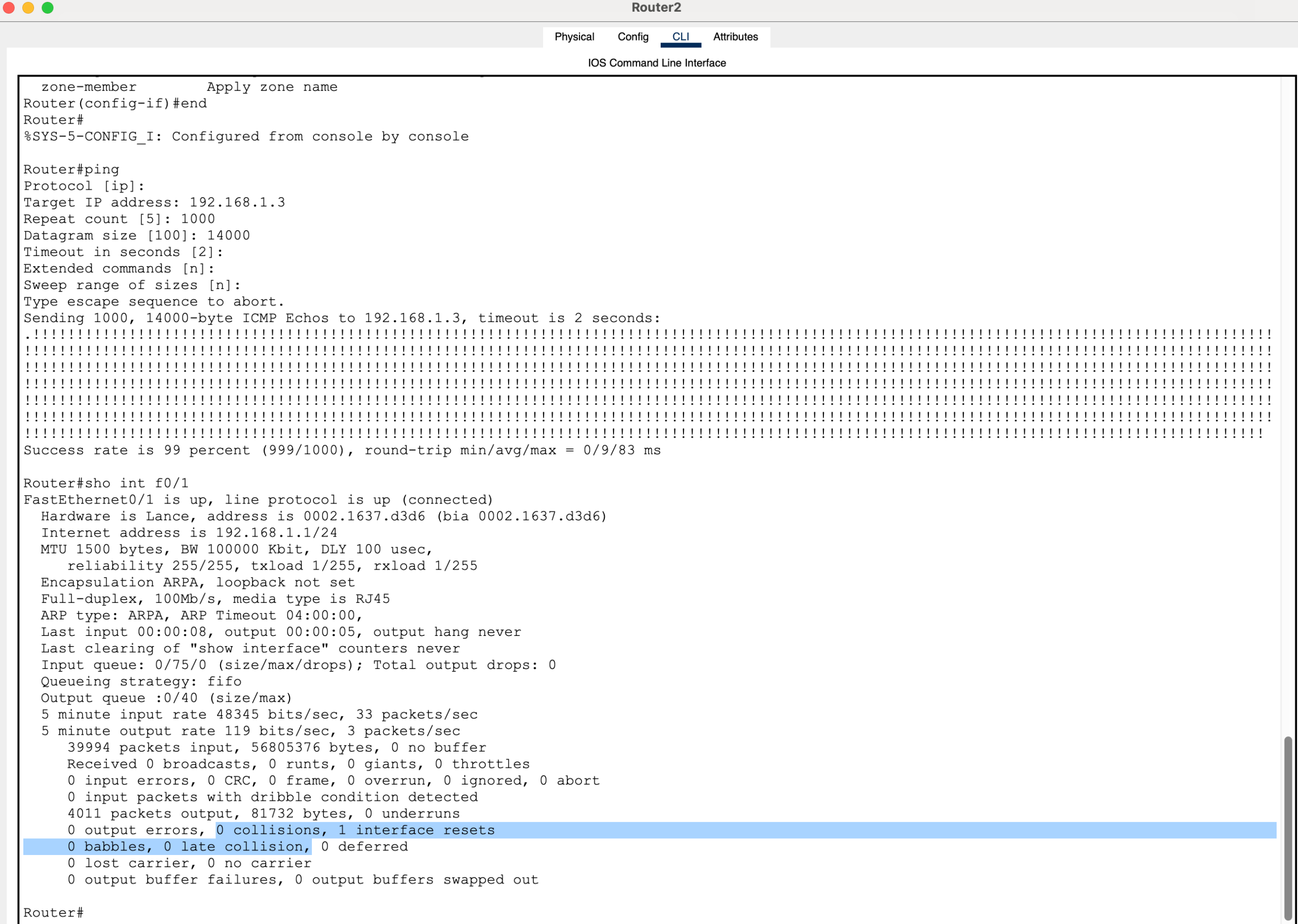
Here is an example of how to exact the “extended ping” command in user privileged mode:
ping
Protocol [ip]:
Target IP address: 192.168.1.3
Repeat count [5]: 1000
Datagram size [100]: 14000
Timeout in seconds [2]:
Extended commands [n]:
Sweep range of sizes [n]:
Duplex Mismatch Testing
Typical Configuration:
- One side: half duplex
- Other side: auto negotiation
Expected Real-World Outcome:
- Late collisions (on the half-duplex side)
- CRC errors
- Significant performance degradation
Packet Tracer Result:
- No collisions
- No visible errors
- Normal performance
This demonstrates a key limitation: packet tracer speed and duplex not working when attempting to reproduce duplex mismatch symptoms.
Router-to-Router Duplex Testing
When testing directly between two routers:
- One router set to half duplex
- The other set to auto
- Large packet sizes and high repeat counts used
For example:
Router>en
Router#conf t
Router(config)#int f0/1
Router(config-if)#duplex half
Result:
- Stable connectivity
- No collision indicators
- No performance issues

If you enter command “show interface” for the particular interface number on the router, you will see Full-duplex is listed even if you use the command “duplex half” to set half duplex on the router.
To further validate this, you can enter the command in exec privledged mode “show running configuration” which reveal that the “duplex half” command is configured to the interface.
Note: The “clear counters” does not exist as a command on Cisco iOS in packet tracer.
Switching to simulation mode proves that nothing is breaking on the local link segment.
Analyzing the PDUs as they traverse the link shows normal behavior when it should not be.
In a real network, this scenario would produce clear signs of a duplex mismatch. In Packet Tracer, however, packet tracer speed and duplex not working continues to prevent realistic outcomes.
Speed Mismatch Testing
Various configurations can be tested:
- One side set to 10 Mbps, the other set to auto
- One side forced to 100 Mbps, the other mismatched
- Interfaces shut and re-enabled during testing
For example:
Router>en
Router#conf t
Enter configuration commands, one per line. End with CNTL/Z.
Router(config)#int f0/1
Router(config-if)#speed 10
Expected Real-World Behavior:
- Auto-negotiation fallback to half duplex
- Duplex mismatches
- Performance issues and collisions
Packet Tracer Behavior:
- The link either works perfectly
- Or the link goes down entirely
There is little to no “degraded performance” state. This reinforces the conclusion that packet tracer speed and duplex not working eliminates the subtle failures seen in real networks.
Testing with a Hub (Collision Domain)
A hub introduces a shared collision domain, making it ideal for testing collisions.

Topology:
- Router → Hub → End Device
Expected Behavior:
- Frequent collisions under load
- Late collisions
- Packet loss patterns
Packet Tracer Result:
- Partial ping success (e.g., ~90%)
- No late collisions
- No meaningful error feedback
Even in a scenario designed to produce collisions, packet tracer speed and duplex not working prevents accurate simulation.
Why Packet Tracer Does Not Behave Like Real Networks
Packet Tracer is designed as a learning tool focused on configuration and logical behavior, not physical-layer accuracy.
It does NOT fully simulate:
- CSMA/CD collision detection
- Timing-based collisions
- Interface buffering and congestion
- Real hardware error counters
Because of this, packet tracer speed and duplex not working is not a bug—it is a limitation of the simulator.
What Would Happen on Real Equipment
On real hardware or advanced emulators, the same tests would produce:
- Late collisions (especially on half-duplex interfaces)
- CRC and input errors
- Retransmissions
- Noticeable performance degradation
- Increasing interface error counters
These are critical troubleshooting signals that are largely absent when packet tracer speed and duplex not working in a realistic manner.
Key CCNA Concepts to Remember
Even though Packet Tracer does not display these behaviors, the exam expects full understanding of the theory:
- Duplex mismatch occurs when one side is full duplex and the other is half duplex
- This results in collisions and poor performance
- Collisions only occur in half-duplex environments
- Auto-negotiation failures are a common cause of mismatches
Students should not rely on Packet Tracer to validate these symptoms, especially when packet tracer speed and duplex not working leads to misleading lab results.
Final Lesson Summary
When performing speed and duplex labs:
- Expect Packet Tracer to behave differently from real networks
- Do not rely on it to demonstrate collisions or error conditions
- Focus on understanding configuration and theory
- Recognize that packet tracer speed and duplex not working is a known limitation
Packet Tracer remains an excellent tool for learning commands and topology design. However, for realistic behavior involving collisions and duplex mismatches, more advanced tools or real hardware are required.